
TS-Control app icon

TS-Control for Kenwood

Your Kenwood radio on your Mac, iPad and iPhone

The spectrum scope, waterfall and all controls of your Kenwood TS-890S. Through the radio's own network access (KNS) at home, or from anywhere over the internet, with no extra hardware.

Download TS-Control for Mac on the Mac App Store

For your Mac

Download TS-Control for iPad and iPhone on the App Store

For your iPad and iPhone

TS-Control on a MacBook: the radio's controls, spectrum scope and waterfall on 20 m TS-Control on the iPhone: spectrum scope, waterfall and the VFO Kenwood TS-890S transceiver

Why TS-Control

Mac, iPad and iPhone
Your Kenwood radio on every Apple device you own, with one logbook shared over iCloud.
Remote without extra hardware
The TS-890's own network access (KNS) is all it needs, at home and over the internet.
Everything built in
FT8-Improved, JS8, CW, SSTV, HF-Fax, APRS, WSPR and Speech, with no extra programs or virtual audio cables.
The radio's memories
See, edit and recall the radio's memories, right from the app.
Your whole shack
MIDI controllers, your own paddle, Ultra Beam antennas, rotators and relay boards.
Updates and personal support
Frequent free updates (see the version history), no subscription, and the developer answers your questions himself.

Highlights

Your shack, anywhere

TS-Control connects to the TS-890's built-in network access (KNS): at home over Wi-Fi or your network cable, and from anywhere over the internet, with a few settings in your router, explained step by step in the manual. No extra hardware, no PC, no extra software.

TS-Control on the iPad: spectrum scope, waterfall and the radio's controls TS-Control on the iPhone: the radio list with a radio at home and one reached over the internet

The radio's memories

The radio's memories show up as spots with their names right on the panadapter. The memory panel steps through them and writes or clears them, and the list shows them all with names, frequencies and modes.

The memory list on the iPhone: channels with names, frequencies and modes Memory spots on the panadapter: CW 20m and FT8 20m at their frequencies

FT8-Improved

The new FT8 with Auto Answer and Auto CQ, and finished QSOs go straight into the logbook. The classic FT8 is included too, for systems before macOS 26 and iOS 26.

FT8-Improved on the Mac: decoded stations with their countries and a finished QSO

Talk across languages

Speech writes the incoming voice as text and translates it into your language. Type your answer, and TS-Control sends it as speech.

Needs macOS 26 or iOS 26.

Speech mode on the iPad: an English call transcribed and translated into German, and the answer to send

CW, JS8 and more modes

Decode CW and send it with the keyer, macros or the CW keyboard. Or use your own paddle: through HaliKey MIDI or another MIDI interface on Mac, iPad and iPhone, and on the Mac also through a USB keying cable. JS8 keyboard chat and WSPR are included as well.

CW window on the Mac: a decoded QSO with the callsigns marked, the send line and the macro buttons JS8 on the iPhone: a keyboard chat with DL7LTM in chat bubbles

Pictures from the air: SSTV and HF-Fax

Receive SSTV pictures, for example from the ISS, and send your own in all common modes. The sender's call sign is shown. HF-Fax receives weather maps from stations such as the German weather service. Pictures can be saved automatically: into Photos on iPad and iPhone, into the Downloads folder on the Mac.

SSTV on the Mac: a received PD120 picture of the ISS for World Space Week 2025 HF-Fax on the iPhone: a weather map from the German weather service on 7880 kHz

APRS and packet radio

Receive APRS positions, messages, weather and status reports, grouped and filtered as you like, and see the stations on a map. Send your position, status and messages, also automatically. Connected mode (AX.25) opens real sessions to a BBS, a node or a Winlink RMS.

APRS on the iPad: the packet list and a connected-mode session with the DB0FBB BBS

Works with WSJT-X and fldigi Mac

The built-in radio server speaks rigctld (Hamlib) and Kenwood. The radio's audio runs through the Common-Radio audio driver, so you don't need a loopback driver. Only in the Mac app.

Radio Server window on the Mac: Radio Server 1 as rigctld (Hamlib)

Logbook

Every QSO in one place, on all your devices. Confirmed QSOs are marked green, and the map shows the grid squares you have worked.

Logbook on the Mac: the QSO list, with confirmed QSOs on a green background Logbook map on the iPad with the worked grid squares
  • Automatic logging from FT8 and the other modes
  • "Worked before" right when you enter a call
  • Call Lookup, duplicate search
  • ADIF import and export
  • Log upload to LoTW, QRZ.com, ClubLog, eQSL, Cloudlog and Wavelog Mac
  • Confirmed QSOs marked green
  • Map of the worked grid squares
  • QSOs sent over UDP to other software
  • Synced over iCloud between your Mac, iPad and iPhone

Controllers

Prefer a real knob? TS-Control works with hardware controllers, over USB on the Mac and over USB or Bluetooth on iPad and iPhone.

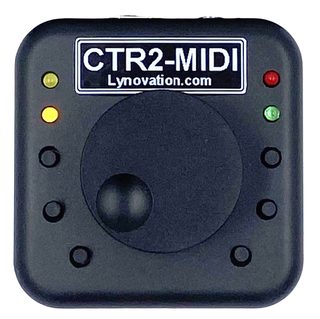
CTR2-MIDI controller with tuning knob and buttons
CTR2
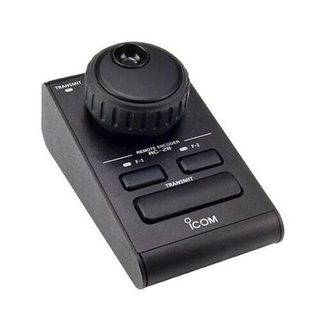
Icom RC-28 remote encoder
RC-28 Mac
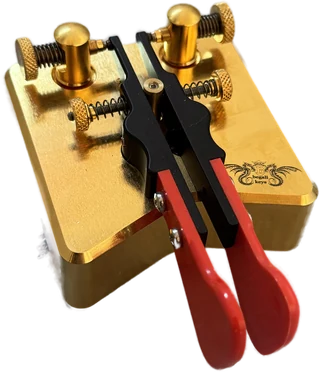
A Begali iambic paddle with red finger pieces
Your own paddle
Behringer CMD Micro DJ controller with two jog wheels
MIDI controllers, e.g. Behringer CMD Micro or DJ2GO2
  • MIDI controllers and CTR2, with your own button mapping
  • Your own paddle, through HaliKey MIDI or another MIDI interface
  • RC-28, FlexControl Mac
  • Keyboard keys, and a paddle over a USB keying cable Mac
  • Flic buttons, Pryme PTT iPad, iPhone

Everything on board

The radio's controls on a big screen, plus modes and tools for the whole shack.

Radio

  • Spectrum scope and waterfall, with the band plan
  • VFO A and B, filters, preamp, attenuator, NB, NR, notch, AGC
  • Memories, memory panel
  • Tuning, PTT, Tune Stack, RIT / ∆TX, DTMF
  • CW panel iPad, iPhone
  • Macros and Command Bar
  • Your iPhone or iPad as microphone and speaker

Modes

  • FT8-Improved and classic FT8
  • JS8
  • CW with decoder and keyer
  • Speech: transcribe and translate
  • SSTV, HF-Fax
  • APRS, WSPR
  • RTTY, PSK

Tools

  • Logbook, Call Lookup
  • DX Cluster with alerts, POTA, PSK Reporter
  • Band Plan, Frequency List
  • CW, voice and speech macros
  • Command Bar, Network Stats
  • S.A.T. with Doppler correction Mac, iPad
  • Genius devices, Ultra Beam, Metropwr, Green Heron, Waveshare

FT8-Improved, JS8, Speech and WSPR need macOS 26 or iOS 26.

What's new

Mac Version 27.0.15

  • New look for the tools, with the same screens as on iPad and iPhone
  • New CW window: decoder and sending with ESM (Enter Sends Message)
  • The band plan as a coloured ribbon on the panadapter
  • Several MIDI controllers at once, FlexControl, and one mapping editor for all controllers
  • Radio panels renewed: DTMF, Macros, Command Bar, RIT / ∆TX and Memories

iPad and iPhone Version 27.0.17

  • Fixed: Data mode on / off works again (the radio went back to the old mode)
  • Fixed: after launch the Lock button showed open while the controls were still locked
  • CW: the Spot tone is louder, plays for 30 seconds and keeps playing when you leave the CW screen
  • DX Cluster: Max. Spot age 10 Min. and 1 Hour no longer remove all spots west of UTC (for example in the US)
  • Controllers: Test LED in the mapping editor for MIDI, CTR2 and CTR2 Dial

Full version history

Kenwood TS-890S transceiver

Supported radios

The TS-890S, connected to your network by cable, with its KNS remote access set up (user name and password). A USB cable connection is not supported.

TS-890S.

Made by a ham

TS-Control is made by Marcus Roskosch, DL8MRE, who has been developing apps for Apple devices since 2009 and works on TS-Control with the supported radios on his own desk. Personal support and a detailed manual are included. Updates with new modes and features are free: no subscription, no in-app purchases.

Questions and answers

I bought TS-Control. Can I use it on my other devices?

Yes, on every device signed in with the same Apple Account, without paying again. TS-Control is two apps: one for the Mac, and one for iPad and iPhone together. Each is bought separately.

I have more than one Kenwood radio. Can I use TS-Control with all of them?

Yes, if they are supported. TS-Control works with several radios and controls one at a time.

Why are only certain radios supported?

The app needs radios that send their spectrum scope data and can be fully controlled over the network. And only radios the developer owns are supported, so each one is developed and tested on a real radio, and support can answer your questions on the same model.

Remote access doesn't work over my internet connection. Why?

The TS-890 always uses UDP port 60000, and the radio doesn't let you change it. Some internet providers block such high ports. Then a VPN to your home network is the way: TS-Control connects through it as if you were at home. The manual explains both ways.

Why isn't the TS-990 supported? It's very similar to the TS-890.

The TS-990 differs from the TS-890 in many details. To support it properly, the developer would need one to develop and test on, and to answer your questions.

Can I use WSJT-X, fldigi or other software along with TS-Control?

On the Mac, yes. TS-Control has a built-in radio server (rigctld / Hamlib, Kenwood) and sends the radio's audio through the Common-Radio audio driver. The iPad and iPhone app has no radio server.

How hard is the setup?

At home, you enter the radio's network address and its access data in the app. The manual explains every step with pictures, including the router settings for use over the internet.

What if something doesn't work?

First look at the "Common Issues" chapter in the manual. If that doesn't help, contact support: the developer answers personally.

Get TS-Control

Download TS-Control for Mac on the Mac App Store

For your Mac

Download TS-Control for iPad and iPhone on the App Store

For your iPad and iPhone

Requirements

  • Radio: a Kenwood TS-890S on your network, with KNS remote access set up
  • Mac: macOS 15 or later, Apple silicon or Intel
  • iPad and iPhone: iOS 18 or later
  • At home: the radio on your network by cable
  • Away from home: access to your home network from outside (router settings, see the manual); if your internet provider blocks the radio's port, a VPN